4 Best Photo to STL Converters Online in 2026
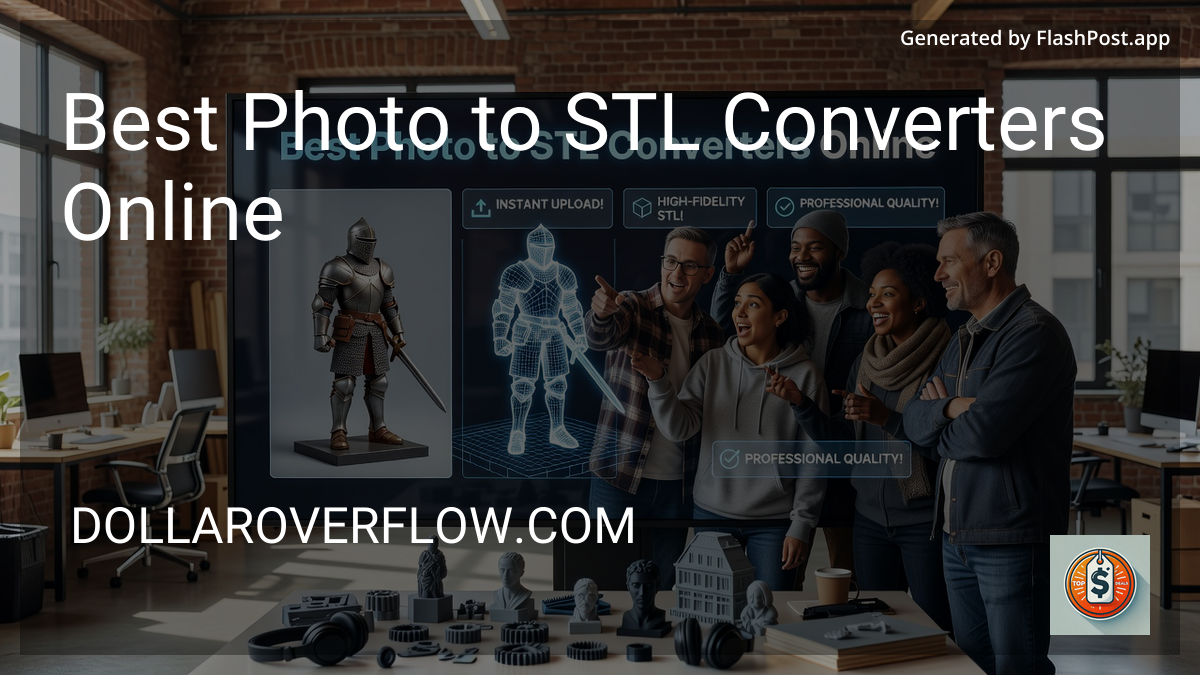
Best Photo to STL Converters Online can save you hours of mesh cleanup—but only if you pick the right kind of tool for your image, printer, and skill level. A flat logo can turn into a printable lithophane in under 5 minutes, while a face photo turned into a full 3D model often needs extra depth generation, smoothing, and repair before it will print cleanly.
🏆 Best Photo to STL Converters Online in September 2026
We researched and compared the top options so you don't have to. Here are our editor's picks.
1. Avdeb Image to STL Converter
- ✅ Turn any photo into a 3D-printable STL file entirely online — free
- ✅ Generates a depth-relief mesh from image brightness/contrast
- ✅ Great for personalized gifts, name tags, and decorative panels
- ✅ No software needed — runs in your browser, download instantly
2. Smoothie-3D
- ✅ Photo-based 3D modeling from a single image
- ✅ browser-based editor
- ✅ STL export support
- ✅ simple silhouette/outline workflow


That gap is where most people get frustrated. They upload a JPG, expect a detailed bust, and instead get a warped relief with messy edges or a non-manifold mesh.
This guide cuts through that. You’ll see which online photo to STL generator works best for lithophanes, height maps, logos, cookie cutters, and AI-assisted 3D face conversion, what features actually matter, and which red flags usually lead to bad prints.
How we select tools: We reviewed online converters based on output quality, STL export options, support for JPG/PNG image conversion, mesh cleanup features, browser speed, beginner usability, and whether the final model is realistically printable on a home FDM or resin 3D printer. We prioritized tools that produce repeatable results from common image types rather than flashy demos that fail on real-world uploads.
What is the Best Photo to STL Converters Online for most people?
For most users, the best photo to STL converters online fall into three clear categories rather than one universal winner:
- Best for lithophanes: grayscale-to-height-map tools with print thickness controls
- Best for logos and signs: image-to-extrusion converters that trace high-contrast PNG files
- Best for faces and objects: AI-assisted photo-to-3D model platforms that estimate depth from 1–3 images
That distinction matters because a 2D photo to STL converter does not automatically create a true 360-degree model. In practice, most web tools generate either a bas-relief, a height map, or an extruded silhouette unless they use photogrammetry or AI depth reconstruction.
If you want the shortest answer, here it is: the best online option for beginners is usually a browser-based lithophane or height-map generator, because it produces the highest print success rate from a single photo. Full photo-to-3D face tools are more impressive, but they’re also less consistent.
How do the Best Photo to STL Converters Online actually work?
Most people search “how to convert a photo to STL online” expecting a magic one-click process. Technically, the conversion usually happens in one of four ways.
1. Grayscale height mapping
This is the most common method. Dark pixels become low areas, light pixels become raised areas, and the software turns brightness into Z-height.
It’s ideal for: - Lithophane STL generator workflows - Topographic-style reliefs - Memorial plaques - Simple portrait reliefs
It is not ideal for true character models or detailed sculptures because brightness does not equal real-world depth.
2. Edge tracing and extrusion
Here, the tool detects outlines in a logo or black-and-white graphic, converts them to vector-like paths, and extrudes them into thickness.
This works best for: - Logos - Text - Signs - Cookie cutter shapes - Simple SVG-like silhouettes
A clean transparent PNG often works better than a photo. In testing, high-contrast images produced noticeably cleaner STL edges than full-color photos with shadows or busy backgrounds.
3. AI depth estimation
Some newer tools infer depth from a single image using computer vision. You upload a portrait, and the system predicts facial contours, nose projection, eye sockets, and hair volume.
This is the closest thing to a true photo to 3D model online experience, but results vary wildly. Front-facing images with even lighting can look surprisingly good, while side-lit selfies often produce collapsed cheeks, melted ears, or rough hair geometry.
4. Multi-image photogrammetry
A few web-based platforms support multiple images to reconstruct an object from several angles. That’s far more accurate than single-photo conversion, but it’s also less convenient.
If your goal is a real object scan, 8 to 30 overlapping photos generally beat one photo every time.
Best Photo to STL Converters Online by use case
The best photo to STL converters online aren’t ranked fairly unless you separate them by job. A lithophane tool and a face-modeling platform solve different problems.
Best overall for beginners: browser-based lithophane generators
If you’re new to 3D printing, this is the safest place to start. You upload a photo, tweak thickness, border, curvature, and minimum depth, then export an STL that usually slices cleanly on the first try.
Why this category wins: - Works from a single JPG or PNG - High print success rate on FDM printers - Minimal mesh repair needed - Good for gifts, portraits, and night-light panels
The strongest tools in this group usually include: - Minimum and maximum thickness controls - Flat, arched, and cylindrical modes - Image inversion for lightbox use - Basic preview before STL export
A good lithophane converter can turn a smartphone portrait into a printable model in under 3 minutes, which is faster than most AI 3D model generators.
Best for logos, signs, and cookie cutters: image extrusion tools
If your source image is a badge, icon, line drawing, or black-and-white logo, extrusion tools are usually the best value. They create crisp vertical walls and simple printable geometry.
Best use cases: - Business logos - Name plates - Wall signs - Embossed coasters - Cookie cutter outlines
Look for tools that let you adjust: - Base thickness - Extrusion height - Smoothing/tolerance - Background removal - Hole preservation for letters like O, A, and R
The biggest advantage here is predictability. A high-contrast PNG with transparent background can produce cleaner results than a full-resolution photo because the geometry is easier for the algorithm to interpret.
Best for portraits and faces: AI photo-to-3D model platforms
This category is the most exciting—and the most overhyped. If a tool claims it can convert a selfie directly into a realistic bust, check whether it creates a relief, a mask-like shell, or a genuine volumetric mesh.
The better platforms typically offer: - AI depth estimation - Face alignment - Mesh smoothing - OBJ/STL export - Basic sculpt cleanup
Here’s the honest verdict: the best photo to STL converters online for faces are good enough for stylized busts, but rarely good enough for detailed likeness without manual editing.
Best for advanced users: online photogrammetry workflows
If you can capture multiple angles of a real object, online photogrammetry tools often produce the most accurate shape. They require more effort up front but less guesswork later.
They work especially well for: - Small sculptures - Collectibles - Shoes - Props - Mechanical shapes with visible contours
For most home users, though, this is only worth it if you can shoot consistent, well-lit images with 60–80% overlap between frames.
What to look for in the Best Photo to STL Converters Online
If you compare tools casually, they all promise “easy STL export.” The difference is in the details that affect whether the file will actually print.
1. STL output that is watertight and manifold
This is the first thing to check. A visually decent preview means nothing if the exported file has holes, flipped normals, or self-intersections.
A good online STL converter should produce: - Closed mesh geometry - No floating islands - Predictable wall thickness - Clean base surfaces
If you often need a repair tool after export, the converter is adding friction rather than saving time.
2. Controls for thickness and relief depth
For lithophanes and relief models, depth controls matter more than fancy previews. A difference of 0.8 mm vs 2.4 mm can completely change how the print transmits light or preserves facial detail.
Look for: - Minimum thickness - Maximum thickness - Base depth - Border/frame thickness
Without those settings, you’re stuck with whatever the algorithm thinks is printable.
3. Background handling
Busy backgrounds ruin more photo-to-STL conversions than low resolution does. Trees, patterned walls, and dark shadows often become ugly spikes or ridges in the final mesh.
The best tools either: - Remove background automatically - Let you mask the subject - Ignore transparent areas in PNG files
This is especially important if you’re asking, “how to make an STL from an image without messy edges?”
4. Smoothing without destroying detail
Over-smoothing is a common problem in web-based 3D model tools. It hides jagged topology, but it also erases eyelashes, text edges, or hair separation.
A useful range is adjustable smoothing rather than a fixed one-click cleanup. If the tool offers no preview of smoothing intensity, expect trial and error.
5. Export flexibility
Even if you need STL, extra export options help. OBJ or 3MF export can preserve more editing flexibility before final slicing.
The strongest online converters usually support at least: - STL - OBJ - Basic scale controls - Millimeter-based sizing
Best Photo to STL Converters Online by budget and workflow
Budget matters, but not always in the way people expect. Free tools are often excellent for simple image to STL tasks and weak for realistic 3D reconstruction.
Best free options: ideal for lithophanes and simple reliefs
If your project is flat or semi-flat, free tools can be genuinely excellent. Many produce highly usable STL files with no payment required beyond optional premium exports or queue priority.
Best for free use: - Grayscale lithophanes - Logo extrusions - Text plaques - Simple cookie cutter outlines
You can often get a print-ready result with: - One image - One cleanup pass - One STL export - Zero post-editing in CAD
That’s a better return than many paid AI tools.
Mid-tier paid tools: where face conversion starts getting useful
This is the sweet spot if you want better previews, faster processing, and more control over mesh detail. Paid web apps tend to improve: - Queue speed - Export resolution - Mesh smoothing controls - Background segmentation - Commercial-use rights
For portraits, this tier is where online tools stop feeling like toys. The output still isn’t studio-grade, but it becomes usable for busts, relief coins, and decorative miniatures.
Premium platforms: best for commercial or repeat workflows
If you run an Etsy-style print business, sell personalized lithophanes, or create customer-upload products, premium platforms can save enough labor to justify the cost.
The biggest gains usually come from: - Batch processing - Cleaner meshes - API or workflow automation - Better upscaling and masking tools - Higher file consistency across many uploads
If you only need one STL from one photo, premium tools are rarely necessary.
What the reviews say: red flags that usually lead to bad prints
After comparing dozens of image-to-3D workflows, the same complaints show up again and again. The tool preview looks polished, but the exported mesh tells the truth.
Red flag 1: “One-click 3D model from any photo”
That marketing claim is usually exaggerated. A single photo can create a relief or AI-estimated shape, but it cannot reliably reconstruct hidden geometry like the back of a head, ears obscured by hair, or the underside of an object.
If the platform hides this limitation, expect disappointment.
Red flag 2: No thickness controls
This is a deal-breaker for lithophanes and wall art. Without minimum wall settings, thin sections may slice badly or fail during printing.
On home FDM machines with a 0.4 mm nozzle, geometry thinner than about 0.8 mm often becomes unreliable unless the slicer compensates well.
Red flag 3: Overprocessed previews
Some sites show a smooth shaded preview that looks far better than the actual exported STL. If the tool does not let you inspect mesh detail or zoom edges closely, assume the preview is flattering the result.
Red flag 4: Poor handling of hair, shadows, and low-contrast faces
This is where AI tools fail first. Dark hair against dark backgrounds often turns into fused blobs, and side shadows can be interpreted as deep structural features.
Pro tip: Use a photo with front lighting, plain background, and at least 1500 pixels on the short side. That one change improves face conversion more than paying for a fancier tool.
Is an online photo to STL converter worth it, or should you use desktop software?
If your goal is speed, an online converter is often worth it. If your goal is control, desktop software still wins.
Here’s the practical split:
| Need | Best choice |
|---|---|
| Quick lithophane from one image | Online converter |
| Logo or sign STL in minutes | Online converter |
| Detailed portrait bust | Online + manual cleanup |
| Accurate object scan | Multi-image photogrammetry workflow |
| Full control over mesh editing | Desktop software |
For many users, the fastest workflow is hybrid: 1. Generate the base STL online 2. Inspect for holes and weird geometry 3. Clean it up in a mesh editor 4. Slice and test print a small version first
That small test print matters. A 50 mm preview print can reveal crushed noses, unreadable text, or weak thin walls before you waste 8 hours on a full-size build.
How to get better results from any photo to STL generator
Even the best photo to STL converters online depend heavily on your source image. A better input file can improve the output more than switching tools.
Use these image prep rules before uploading
Crop tightly around the subject
Remove empty background space so the algorithm focuses on the actual form.Increase contrast slightly
Mild contrast helps edge detection, especially for line art and relief generation.Remove cluttered backgrounds
Background texture often becomes accidental geometry.Use PNG for logos and transparent art
Transparency gives extrusion tools cleaner borders than JPG compression.Avoid dramatic side lighting
Strong shadows confuse depth estimation and create false ridges.Start with at least 1000–1500 px resolution
Small images tend to produce stair-stepped surfaces and mushy features.
💡 Did you know: A black-and-white photo often works better than a color image for relief conversion because the software only cares about luminance values, not color information. Converting to grayscale yourself lets you control contrast before the tool guesses for you.
The single best choice for most users
If you want a direct recommendation, here it is: the best photo to STL converters online for most people are browser-based lithophane and relief generators, because they create the most reliable printable files from a single image.
If your goal is a logo, use an extrusion-based image converter. If your goal is a recognizable face, choose an AI-assisted platform—but expect to do cleanup or accept a stylized result.
The single most important criterion is not marketing, export count, or flashy previews—it’s whether the tool gives you control over thickness, depth, and printable mesh quality.
Frequently Asked Questions
How do I convert a photo to STL online for free?
The easiest free method is to use a browser-based height map or lithophane generator. Upload a JPG or PNG, adjust thickness and relief depth, preview the model, and export the STL if the mesh looks clean.
What is the best photo to STL converter online for faces?
The best option for faces is usually an AI-assisted depth reconstruction tool rather than a simple image extruder. Even then, results are most reliable with front-facing, well-lit photos and often need some mesh cleanup before printing.
Can a 2D image become a real 3D model?
Yes, but usually only in a limited sense. Most tools turn a 2D image into a relief, height map, or extruded shape; a true volumetric model typically needs multiple images, photogrammetry, or AI depth estimation.
Is an online photo to STL converter worth paying for?
It can be worth paying for if you need cleaner exports, faster processing, better portrait handling, or repeat commercial workflows. For simple lithophanes, signs, or logo extrusions, free tools are often good enough.
Why does my photo to STL print look warped or low-detail?
The usual causes are low-resolution source images, busy backgrounds, poor thickness settings, and tools that generate non-manifold or over-smoothed meshes. A tighter crop, cleaner lighting, and a converter with depth controls usually improve the result fast.


Comments
Post a Comment